- Open Windows live mail
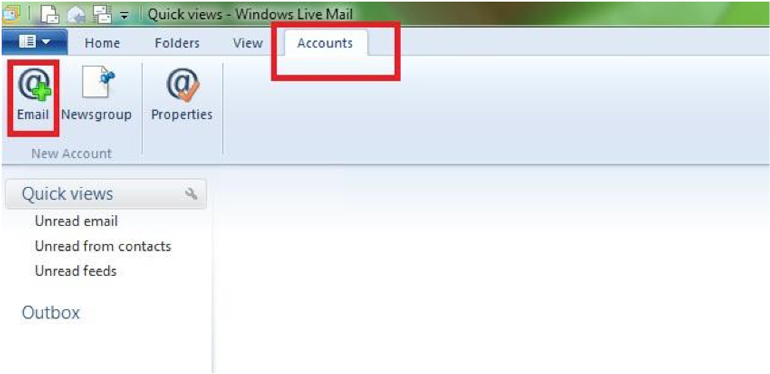
- Go to the accounts tab on the top and select, “Add an account.”
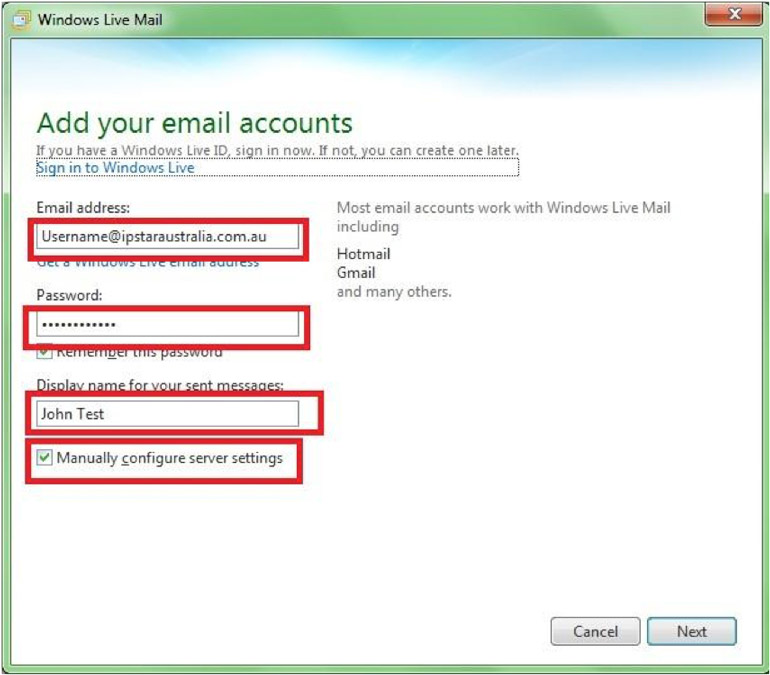
- Enter your email address, password and display name (this will appear on the emails that you send). Tick the ,”Manually configure server settings”, button and click, “Next.”
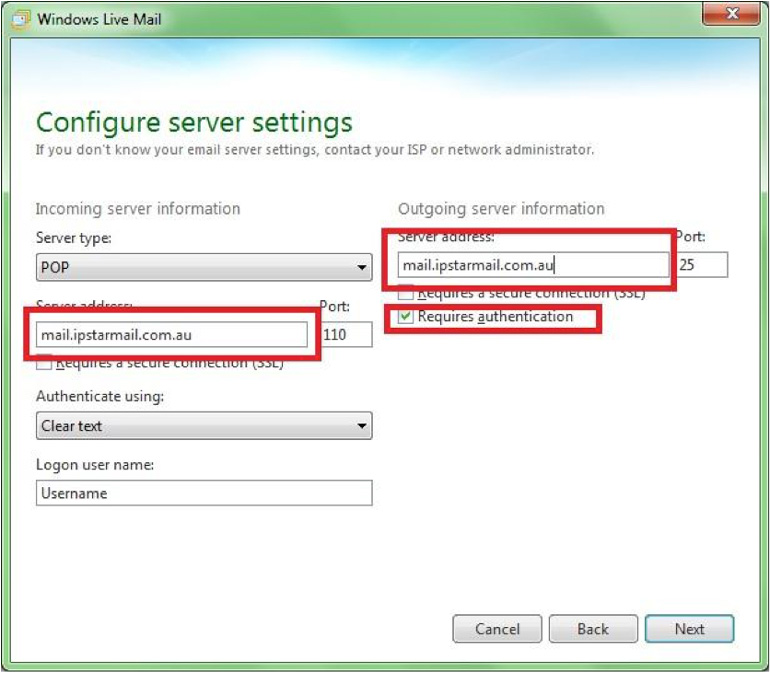
- Now you will need to enter the IPSTAR POP and SMTP mail server (mail.ipstarmail.com.au) and also tick the box that says,” Requires Authentication.” Leave the default values for all other options and click next.
-
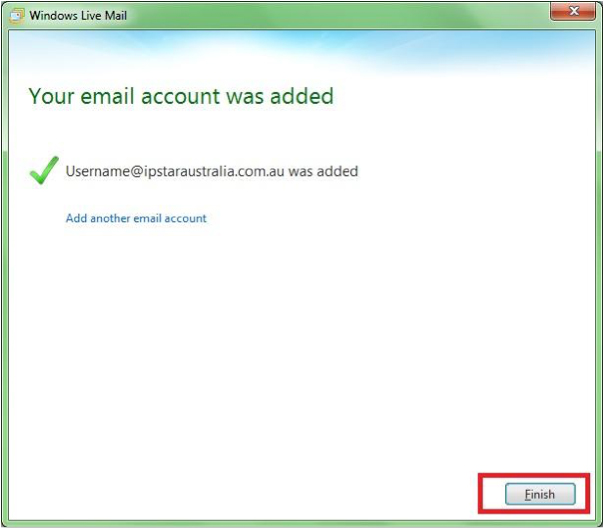
You have now completed the mail setup. Click on “Finish.”
Setting up IPSTAR Mail with Windows Live